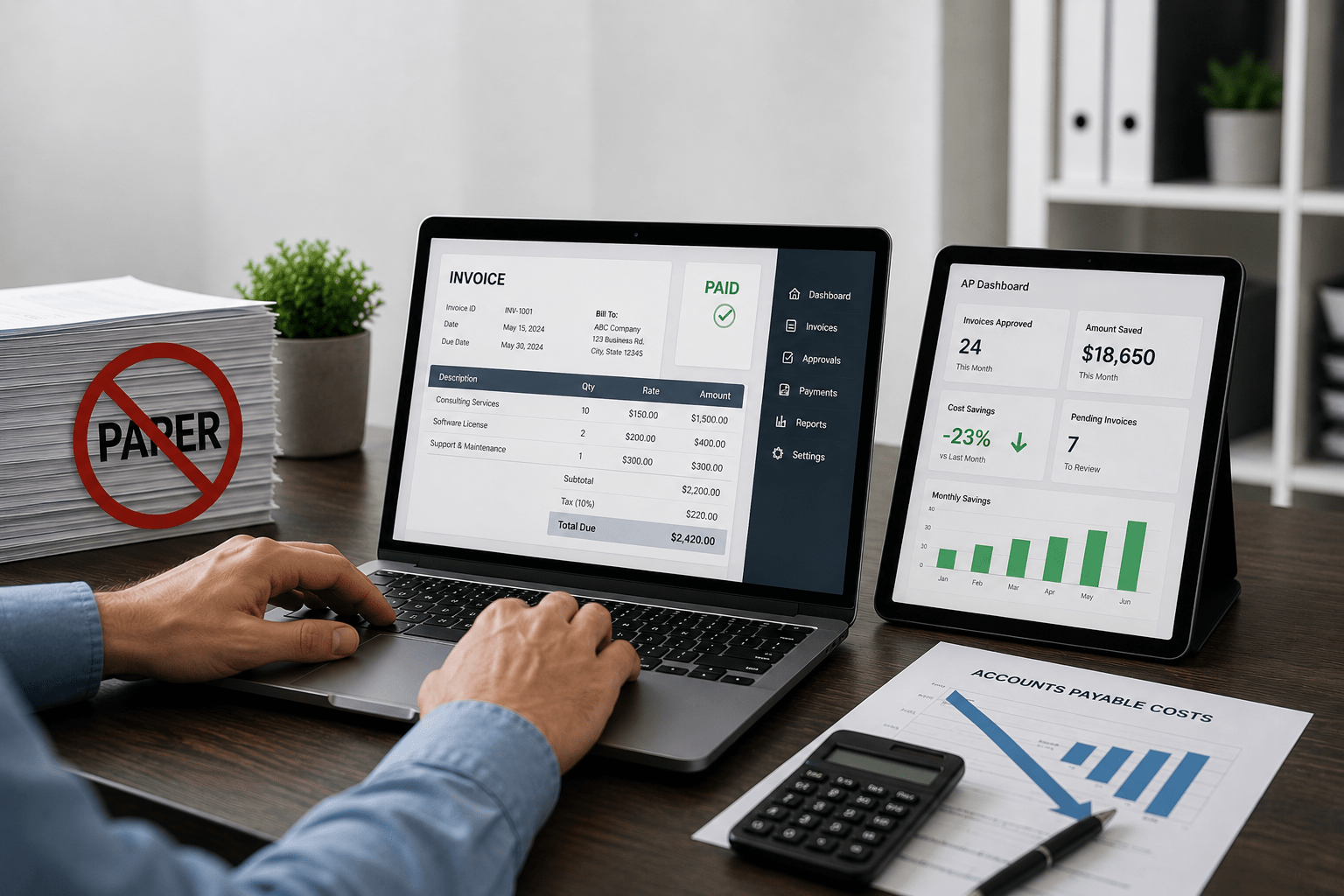
Paperless accounts payable sounds like a scanning project. Then the auditor calls.
It’s 2 p.m. on a Thursday. An auditor asks Dana, the AP clerk at a fictional distributor, for last year’s invoices from one vendor. Dana walks to the storage room. Two hours later, she’s still sorting through boxes of stapled invoices, POs and packing slips, hunting for one matching set.
This is the problem paperless accounts payable solves. Invoices, purchase orders and receipts live in one organized digital place, named by rule, linked to each other and easy to search. This guide walks you through a paperless accounts payable process in seven steps, without replacing your accounting system. It’s written for AP teams at dealerships, schools, healthcare practices, law firms, mortgage companies and other small and mid-size businesses going paperless for the first time.
Key Takeaways
What Is Paperless Accounts Payable?
Paperless accounts payable is a process where invoices, purchase orders, receiving reports and approval records are captured, filed and managed digitally, instead of being kept in boxes or scattered across shared drives. Your AP team works with digital documents from intake to payment to archive.
Why Do AP Teams Still Rely on Paper?
Paper comes into AP from every direction: purchasing, the warehouse, the mailroom and suppliers. Over time, that creates a familiar set of problems:
A shared drive alone doesn’t fix this. Moving files to OneDrive or Google Drive clears the physical clutter. But without naming rules, folder structure, linking and approval workflows, you’ve just moved the chaos to the cloud.
What Documents Does Accounts Payable Need to Keep?
A paperless accounts payable system rests on six core documents. Each one proves something different, and each should link to the others.
| Document | What It Proves | Should Link To |
|---|---|---|
| Invoice | The vendor’s request for payment (amount, date, items) | PO, receiving report, approval record |
| Purchase order | Approval to buy goods or services before the invoice arrives | Invoice, receiving report |
| Receiving report | Goods or services were received as ordered | Invoice, PO |
| Remittance | Payment was sent to the vendor (check stub, bank record) | Invoice |
| Approval record | A manager or owner approved the payment | Invoice, PO, receiving report |
| Vendor Form W-9 | The vendor’s taxpayer ID for tax reporting | Vendor record |
Keep all six in one place, named by rule and linked by PO number or invoice number. That’s the foundation everything else builds on.
How Do You Set Up a Paperless Accounts Payable Process?
Here’s how to make accounts payable paperless in seven steps. You can start Step 1 this week.
Step 1: Map How Paper Moves Today
Before you digitize anything, trace one invoice from arrival (email, mail or portal) through approval to filing. Who touches it? Where does it wait? For how long?
A fictional healthcare practice, for example, might find that invoices arrive by email, get printed, sit in the office manager’s tray for three days, then go to two people for sign-off before landing in a cabinet. That gap between arrival and filing is where your new rules go.
Step 2: Set One Intake Point for Invoices
Choose one channel where all invoices arrive, such as a shared AP inbox, a vendor portal or a scan station for mailed paper. Don’t let invoices scatter across personal inboxes or get printed and handed around. A single intake point helps make sure nothing gets missed, and it gives your naming and linking rules a clear starting point.
Step 3: Set a File Naming and Folder Rule
Create one naming convention and use it for every document. For example: VendorName_INV-1042_2026-03-15.pdf
This tells you the vendor, invoice number and date at a glance. Pair it with a folder structure that mirrors how your team searches, such as by vendor, year or cost center.
The rule must be simple enough that anyone in your office can apply it. “Invoice from Acme” isn’t a rule. VendorName_INV-[number]_[date] is. Docupile’s AI auto-naming applies your naming rule to incoming files, and its auto-split and auto-sort features file each document in the right folder.
Step 4: Link Invoices to POs and Receipts With a Three-Way Match
A three-way match compares the invoice’s amounts, line items and quantities against the purchase order and the receiving report. If all three agree, the invoice moves to approval. If not, it’s flagged for review. This helps catch billing errors and quantity mismatches before payment.
To do this digitally, put the PO number in your file names. If your PO is PO-5551, name the invoice VendorName_INV-1042_PO-5551_2026-03-15.pdf and the receiving report VendorName_RCV-PO-5551_2026-03-15.pdf. A search for “PO-5551” then pulls all three documents together.
Linking by PO number also keeps paperless invoice processing moving, because no one has to hunt for the matching paperwork. For more on storing and retrieving these records, see our guide to accounts payable document management.
Step 5: Set Up an Invoice Approval Workflow
Route each invoice to the right approver based on amount, vendor or department. For example, invoices under $500 go to the office manager, $500 to $5,000 go to the controller, and anything above $5,000 goes to the owner. Name a backup approver so invoices don’t stall when someone is out.
Customizable approval workflows turn this invoice approval workflow into a set routine: each invoice goes to the right person, without the email back-and-forth.
Step 6: Set Retention Rules and Auditor Access
Decide how long to keep invoices, POs and receipts. For tax purposes, the IRS generally says to keep records that support a return until its period of limitations runs out. That’s often 3 years, and longer in some cases. See the IRS page How long should I keep records? for details.
This isn’t legal or tax advice. Check with your accountant, as other rules may require longer retention. Then create read-only access for auditors, so they can view documents without editing them. That makes audit requests easier to handle.
Step 7: Train Your Team and Suppliers, Then Review Monthly
Show your team how to submit, find and approve invoices in the new system. Tell vendors where and how to send invoices. Each month, review the workflow. Are invoices approved on time? Are files named correctly? Where are the bottlenecks? Adjust as needed.
Find any invoice fast. Book a Docupile demo.
What Changes Day to Day With Paperless Accounts Payable?
Here’s how paperless AP compares with paper, task by task.
| Task | Paper AP | Paperless AP |
|---|---|---|
| Invoice storage | Boxes, filing cabinets and scattered desks | One central digital system |
| File naming | Inconsistent (“Invoice.pdf,” “2026-03-15_Acme.pdf”) | One rule (VendorName_INV-1042_2026-03-15) |
| Finding an invoice | Searching drawers and boxes | Searching by vendor, PO number or date |
| Three-way match | Manual hunt through files | Linked by PO number in file names |
| Approval routing | Walking paper to desks, emailing back and forth | Routed digitally, with backup approvers named |
| Audit readiness | Days of gathering and organizing | Linked records ready to share |
| Official record | Paper and scanned copies kept side by side | One digital record |
What Should You Look for in Paperless Accounts Payable Software?
Use this checklist when you compare tools:
What Mistakes Should You Avoid When Going Paperless?
How Does Docupile Support Paperless Accounts Payable?
Docupile focuses on the document side of AP. It’s a cloud, AI-powered document management platform that works alongside your current accounting system instead of replacing it.
If you also run an invoice management system or are exploring back office automation, Docupile handles the documents while your accounting system handles the numbers.
What’s the First Step to Paperless Accounts Payable?
Paperless accounts payable isn’t a massive overhaul. It’s a simple system for naming, linking and routing documents, so your team spends less time hunting and more time paying vendors on time. Start with Step 1: map how one invoice moves through your office today.
Remember Dana and her boxes? With one intake point, one naming rule and linked records, the next audit request becomes a quick search, not an afternoon in the storage room.
See how Docupile organizes your AP documents. Book a demo.