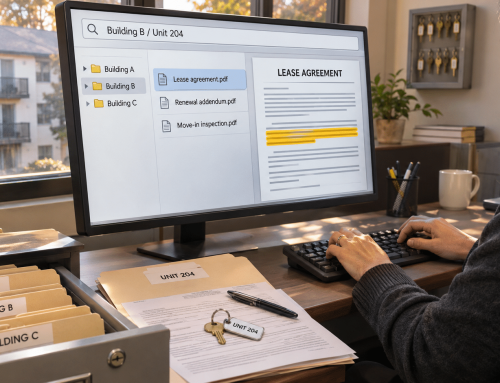

Government document management is put to the test when a county clerk gets a public records request due in 10 days, and the permit file lives in three places: a filing cabinet, a shared drive folder labeled “2024-Q3” and an email thread from six months ago.
Requests like this keep coming. Federal agencies alone received a record 1,501,432 FOIA requests in fiscal year 2024, up 25.15% on the year before, and state and local offices answer their own requests under state public records laws.
The usual fix is to hire more people. But more staff without a system only means more inboxes and more places for a file to hide.
This guide covers what government document management is, why scattered records cost small offices so much, the rules that shape public records, how a document management system works, what to ask vendors, and a six-step plan to move from paper to digital.
What Is Government Document Management?
Government document management is how a public office captures, organizes, stores, finds and archives its records, so any record can be produced when residents, auditors or other departments ask for it. A government document management system is the software that does this work, filing, naming and tagging records in one searchable place.
It covers every department, from the clerk’s office to finance, HR and permits. It replaces the mix of cabinets, shared drives and inboxes most offices rely on today.
How Is It Different From Business Document Management?
Document management for government agencies follows rules most businesses never face. Public access laws let residents and journalists request records. Retention schedules set how long each record type must be kept, and a business can often delete a file that a government office cannot. Records also live longer and pass through more departments.
The federal government has already moved. Under OMB/NARA memo M-23-07, federal agencies had to manage all permanent records electronically by June 30, 2024. Many state and local offices are now on the same path.
A government system should make records easy to organize and find under these rules.
Why Do State and Local Offices Need Better Document Management?
Paperwork is a heavy load across government. The public spent about 10.5 billion hours on federal information collections in fiscal year 2023. Inside a small office, the cost shows up as hours lost to searching, sorting and renaming files. If several of the problems below sound familiar, review the signs it’s time to move to digital records management.
Records Split Across Paper, Drives and Email
A permit application is printed and filed in a cabinet, its scanned copy sits on a shared drive and the approval email stays in an inbox. There is no single source of truth. When a request arrives, staff search all three places and can still miss the file. Over time, staff build private knowledge of where things might live, and when someone retires or transfers, that knowledge leaves with them.
Staff Spend Too Long Finding a Specific Record
Without shared naming or tagging rules, every search starts from scratch. One person files by date, another by resident name, another by case number. A quick lookup turns into a long hunt, and urgent requests wait on the one person who knows the system.
Request Deadlines Leave Little Time to Search
Public records requests come with deadlines set by state law. When search time is unpredictable, staff have no buffer. They rush, and responsive records can be missed, which can lead to complaints, appeals and lost public trust.
Inconsistent File Naming Across Departments
Finance names files by invoice number, HR by employee ID and permits by case number. When staff move between departments or a new hire joins, they spend weeks learning unwritten rules. Older records become hard to read, and the office can’t be sure what it holds.
Mixed Scanned Batches Need Manual Sorting
A scanned stack can mix permits, inspection reports and applications. Someone has to split each one out, name it and file it. The work is slow, error-prone and invisible in the budget, and backlogs grow while staff sort old paper.
Which Records Do Government Offices Manage Every Day?
Every department creates and receives its own record types, and each type has its own retention rule. Here is what a typical office handles:
| Department | Common records |
|---|---|
| Clerk / Recorder | Vital records, meeting minutes, board resolutions, licenses, permits, deeds |
| Finance and AP | Invoices, receipts, payroll records, budget reports, grant documents, purchase orders |
| HR | Employment files, offer letters, performance reviews, benefits enrollment, training logs |
| Permits and Planning | Applications, inspection reports, certificates, zoning decisions |
| Public Works | Maintenance logs, project files, safety reports, equipment records, contracts |
| Schools and Boards | Attendance records, payroll, board minutes, student files, grant reports |
A missing inspection report can lead to audit findings, and an incomplete employment file creates risk for the office. HR files are a common place to start; see how one HR team built dependable records.
What Rules Shape Government Records Management?
Note: This section is for general education only and isn’t legal advice. Check with your state archives or legal counsel for the rules that apply to your office.
Public Records and FOIA Requests
The federal Freedom of Information Act covers federal agencies. State and local offices follow their own public records laws, and each state sets its own deadlines and exemptions. NFOIC’s state FOI resources list the rules by state.
A request can come from a resident, a journalist or an advocacy group. Your office has to find, review and release responsive records within the deadline. Late or incomplete responses create legal risk and erode public trust. That’s why findable records matter: when staff can search records by keyword, tag or metadata, they spend less time checking every cabinet and inbox.
Records Retention Schedules
Retention schedules set how long each record type must be kept before it can be destroyed, and each state publishes its own. For example, the Texas State Library and Archives Commission publishes 12 local government retention schedules, including one for county clerks, and warns that a local government must adopt them before using them to destroy records. For federal agencies, NARA publishes the General Records Schedules.
Without a schedule, staff don’t know what to keep or destroy, so storage swells and risk grows. For more on building a policy, see our guide to document retention.
How Does a Government Document Management System Work?
A government document management system takes over the repetitive filing work. Document automation for government offices usually follows six steps:
Document Management for Towns and Small Municipalities
A small town clerk’s office handles building permits, vital records and meeting minutes with a team of two or three. For offices this size, government records management software needs to be simple: scan a batch in the morning, let the system name and file each record, and pull it up by resident name when someone calls. Consistent document indexing is what makes that last step work.
How Municipal Clerk Records Management Software Handles Mixed Batches
A county clerk’s office takes in licenses, certificates and inspection reports from many departments, often in one scanned stack. Municipal clerk records management software can split and sort scanned batches into individual records, then name each one by the county’s rules. Staff check the results instead of sorting every page by hand, which frees time for records requests and residents.
See what manual filing costs your office. Try the savings calculator.
What Should You Look for in Public Records Management Software?
Whether you are comparing records management software for government or looking for the best records management system for municipalities, ask every vendor the same questions.
Hosting and security
Data ownership and contracts
Automatic filing and naming
Search and retrieval
Training and support
Start with filing and naming. That’s where most of a small office’s manual hours go.
How Do You Move a Government Office From Paper to Digital Records?
Paperless government doesn’t happen in one step. Plan it in phases.
1. Inventory Where Records Live
List every place records sit: cabinets, shared drives, email folders, desk drawers and storage rooms. Ask staff which records they search for most and where they look first. That shows you where the worst bottlenecks are.
2. Map Record Types to Your Retention Schedule
List the record types your office handles and match each one to its retention schedule. This map becomes your filing rulebook.
3. Start With One Department
Pick one department or record type, such as finance invoices or building permits, and pilot there first. Staff learn on a small set before you scale.
4. Set Naming Rules and Tags
Write down how each record type should be named and tagged. For example, permits are named Permit_[Case Number][Resident Name][Date], and invoices are tagged Finance, Vendor and Year. Once the rules are set, the system names and tags records consistently.
5. Scan and Load in Batches
Scanning is the slowest part, so work in weekly batches. Load each batch, let the system name and file it, then spot-check the results and adjust rules as needed.
6. Train Staff and Review Monthly
Show staff how to search and file in the new system. Each month, check how quickly records are found and how request turnaround is changing, then refine. A document organization checklist can help structure these reviews.
How Does Docupile Support Government Document Management?
Docupile is an AI-powered document management platform that helps small public offices file, name and find records without a large IT team. For government document management, it offers:
Conclusion
Government document management turns scattered cabinets, drives and inboxes into one organized, searchable set of records. For small state and local offices, the path is practical: learn the rules that apply to you, choose a system that files and names records consistently, and move one department at a time.
See how Docupile files, names and finds your office’s records automatically. Book a demo.